LoRA Part 2: Text-to-Image Practice with LoRA — An Example of Practical Case


In the LoRA Part 1, we expanded on the article in the Part 2 by introducing how to integrate the LoRA model node into the text-to-image workflow to create a new workflow. In this part, we'll provide a practical example of a workflow that includes the LoRA model node.
Practical Example: Generating a Chinese-style anime girl
Now, let’s fill in the parameters and generate an actual image.
Step 1: Select a Model
l In the Checkpoint Loader node, choose a model suitable for anime style, such as meinamix_meinaV11.safetensors.
l In the LoRA Loader node, choose a model suitable for Chinese-style illustration type, such as 国风插画SDXL.safetensors,set the strength_model to 0.7, and keep the strength_clip unchanged.
Step 2: Enter Prompts
- Positive Prompt: Enter the content you want to see, e.g.:
masterpiece, best quality, (hanfu), 1girl, white plum blossom on one side, 1 girl, solo, front view, close up - Negative Prompt: Enter low-quality content to avoid, e.g.:
lowres, text, error, extra digit, fewer digits, cropped, worst quality, low quality, normal quality, jpeg
💡 Tip: Use clear, well-lit images for the best results.
Step 3: Set Dimensions
In the Empty Latent node, set the width to 512, height to 768, and batch size to 1.
Step 4: Configure the Sampler
Set the key parameters in the K Sampler node:
Random Seed: 0
After Running: Random
Steps: 25
CFG: 7
Sampler: dpmpp_2m
Scheduler: karras
Denoise: 1.0
Step 5: Generate and Save the Image
Click “Add Prompt Queue” to start generating.
In the Preview Image node, right-click and choose “Save Image”.
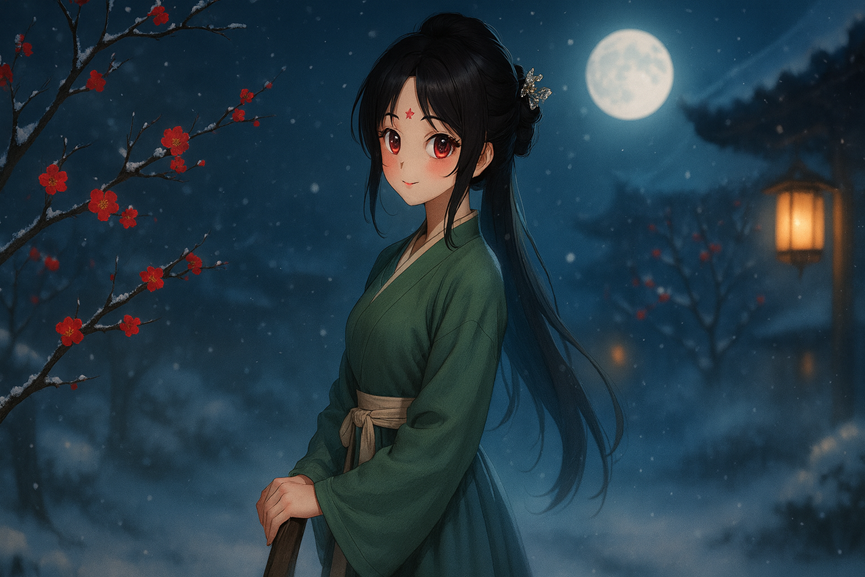
Results and Notes
With this workflow, you can successfully convert text into exquisite image. Keep in mind:
Size: Output matches the input resolution.
Clarity: Results may be slightly blurry.
Details: Expressions and poses may change a little.
These issues can be improved later with upscaling workflows or ControlNet.
Suggestions
Experiment: Different photos may require different prompts or parameters.
Practice: Try several runs to find the best settings.
Save: Keep successful workflows for reuse.
Unlock Full-Powered AI Creation!
Experience ComfyUI online instantly:
https://market.cephalon.ai/share/register-landing?invite_id=RS3EwW
Join our global creator community:
https://discord.gg/MSEkCDfNSW
Collaborate with creators worldwide & get real-time admin support.