Five Practical Tips for Optimizing Negative Prompts

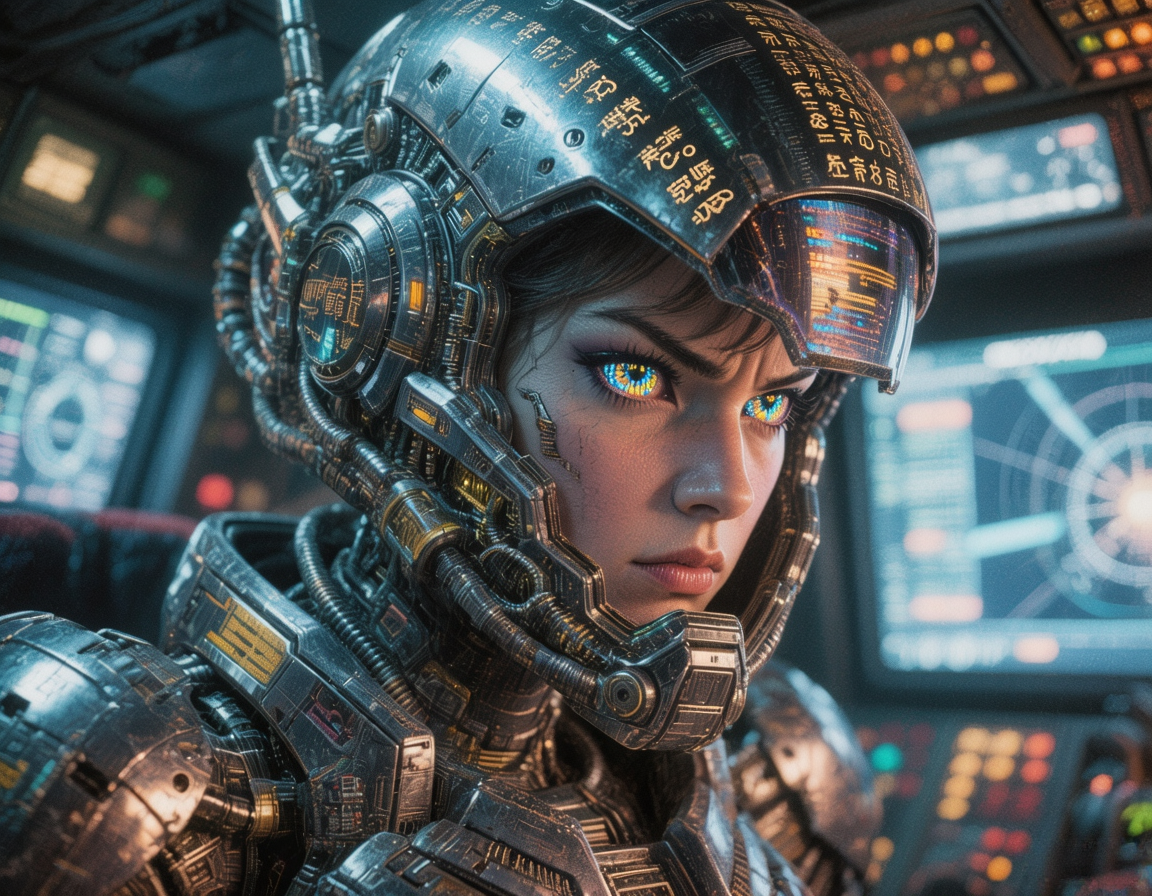
When working with Stable Diffusion (SD), many people focus on crafting the perfect positive prompt but often overlook the importance of negative prompts. In fact, a well-written negative prompt can make a huge difference in how clean, natural, and polished your final image looks. It helps you filter out unwanted elements and refine the overall quality. Here are five practical tips to help ComfyUI users write more effective negative prompts.
1. Understand What Negative Prompts Do
Negative prompts serve two main purposes:
- Improve the overall image quality
- Exclude unwanted features or details
For example:
- To make sure a character’s hair covers their ears, you can add
ear. - To make an image look more photographic rather than painterly, include words like
paintingorcomic. - To prevent distorted anatomy such as extra arms or fingers, use
too many fingersorextra legs.
In short, positive prompts tell the model what you want, while negative prompts tell it what to avoid.
2. Use Embedding Models for Better Control
Embedding models allow you to condense long descriptive prompts into a single token without losing quality—in some cases, they even perform better. When used for negative prompts, embeddings help control image composition more precisely and reduce unwanted distortions.
How to Use
2.1 Download an Embedding Model
For example, download EasyNegative.safetensors and move it to the models/embeddings folder under your online ComfyUI document.

2.2 Add It in ComfyUI
Create a new “CLIP Text Encoder” node and type: embedding:
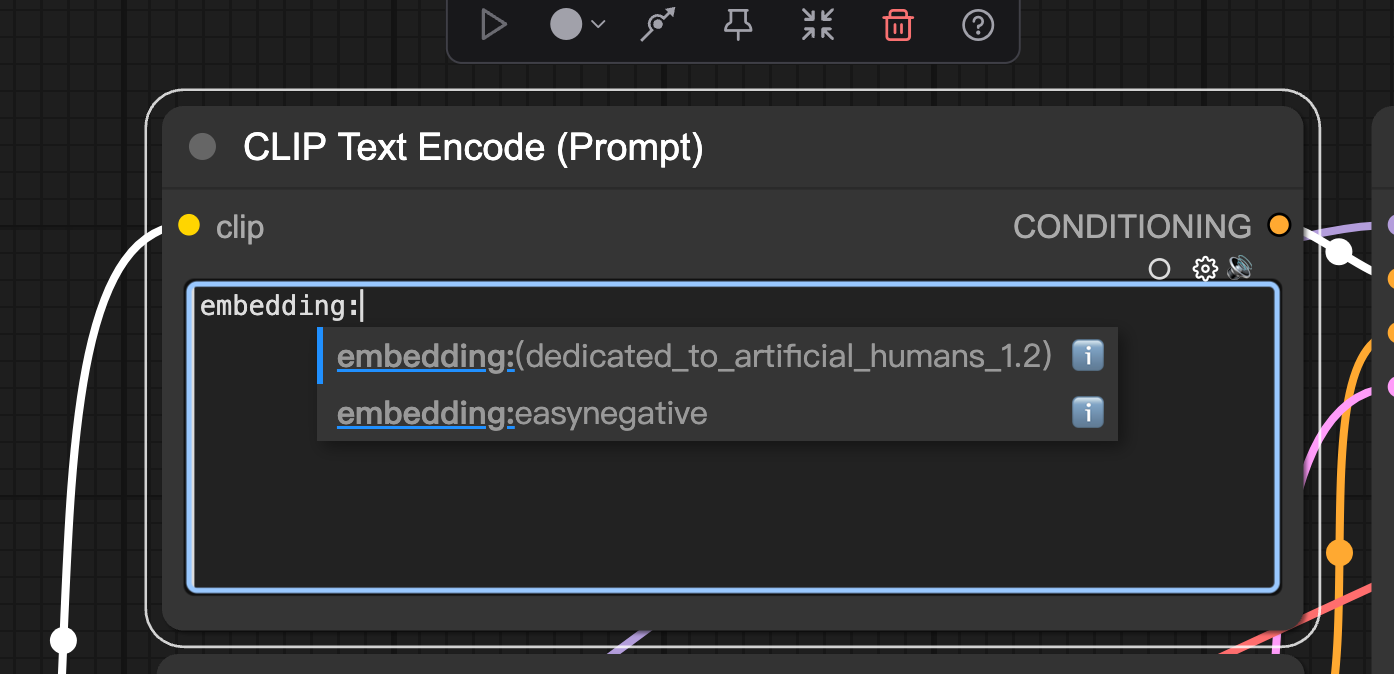
A list of available embedding models will appear. Select the one you want to use.
2.3 Combine Multiple Embeddings
You can use more than one embedding by adding embedding: again for each model.
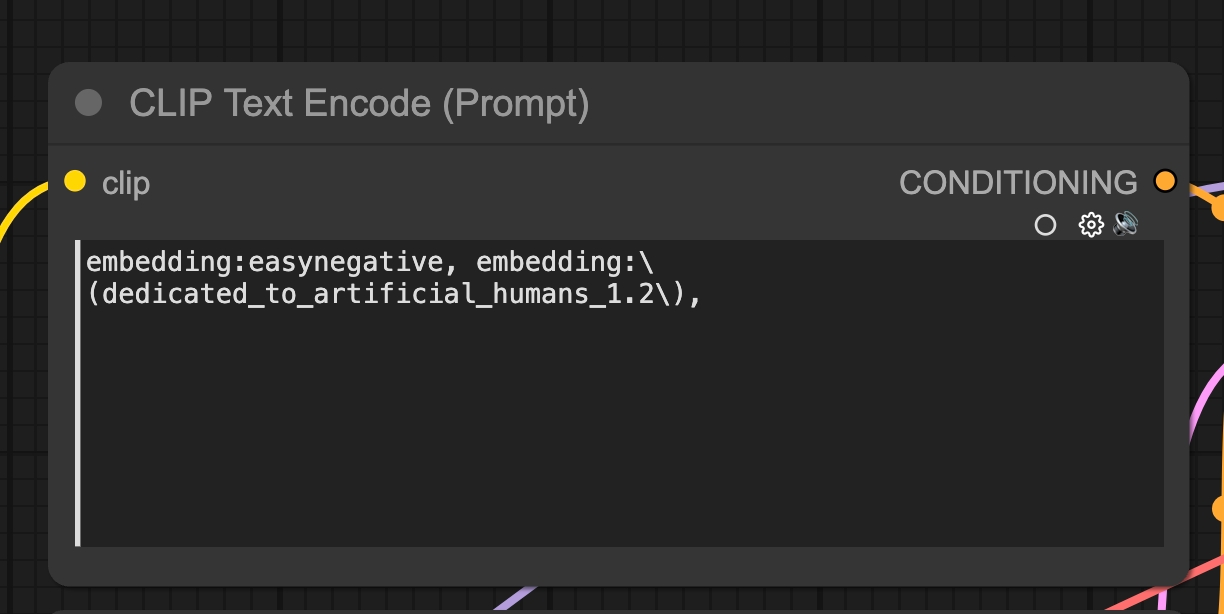
Keep in mind:
- The “e” in
embedding:must be lowercase. - Avoid mixing models from different SD versions (for example, don’t use SD1.5 embeddings on SDXL), or your results will degrade in quality.
3. Popular Negative Embedding Models
Here are some of the most reliable and widely used embedding models for negative prompts:
EasyNegative
Enhances image clarity and detail, prevents blurriness and facial distortion. Works great with anime-style models.
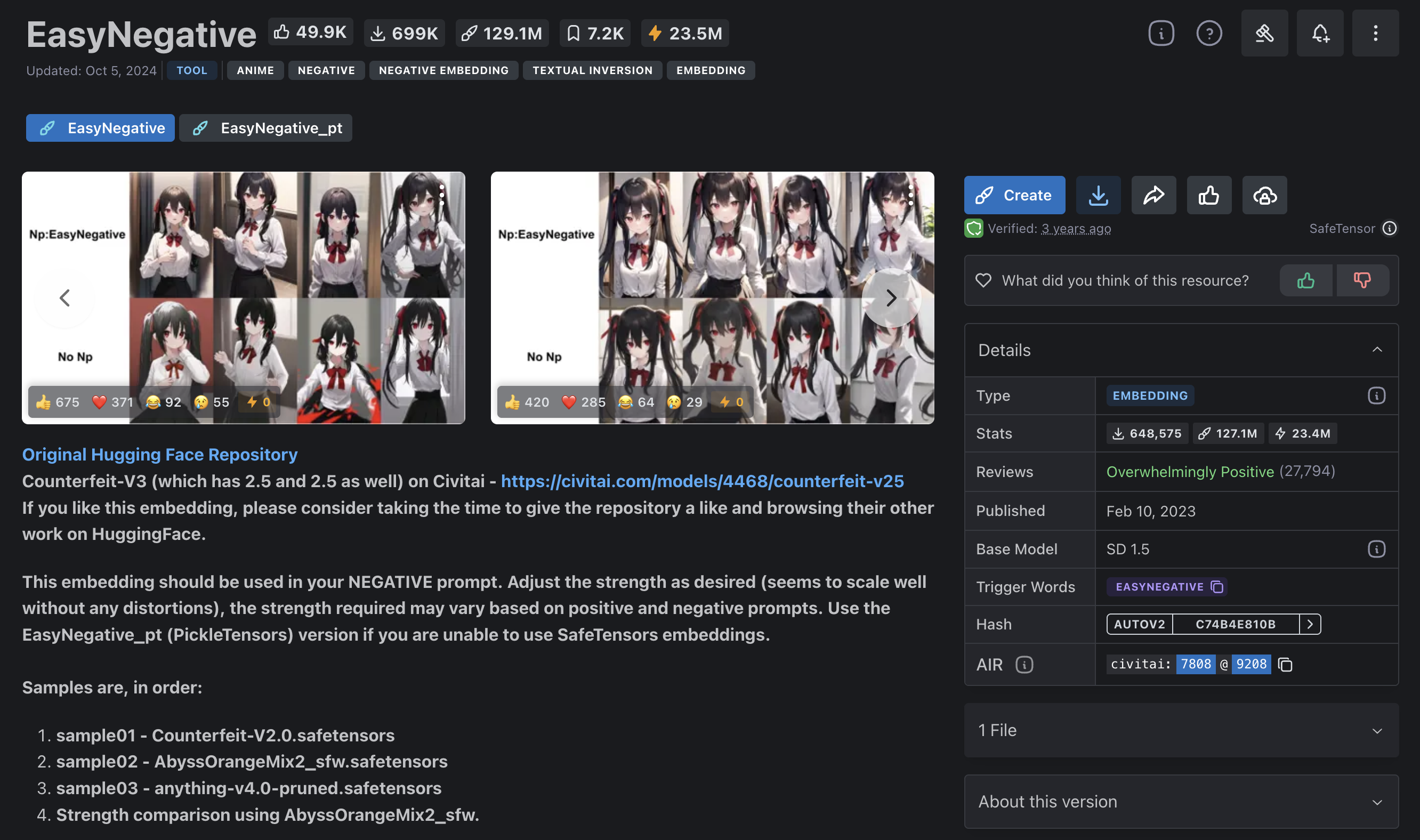
Download👇:
https://civitai.com/models/7808/easynegative
Deep Negative_v1_75t
Improves color balance and composition while reducing spatial or anatomical distortions. Suitable for both anime and realistic styles.
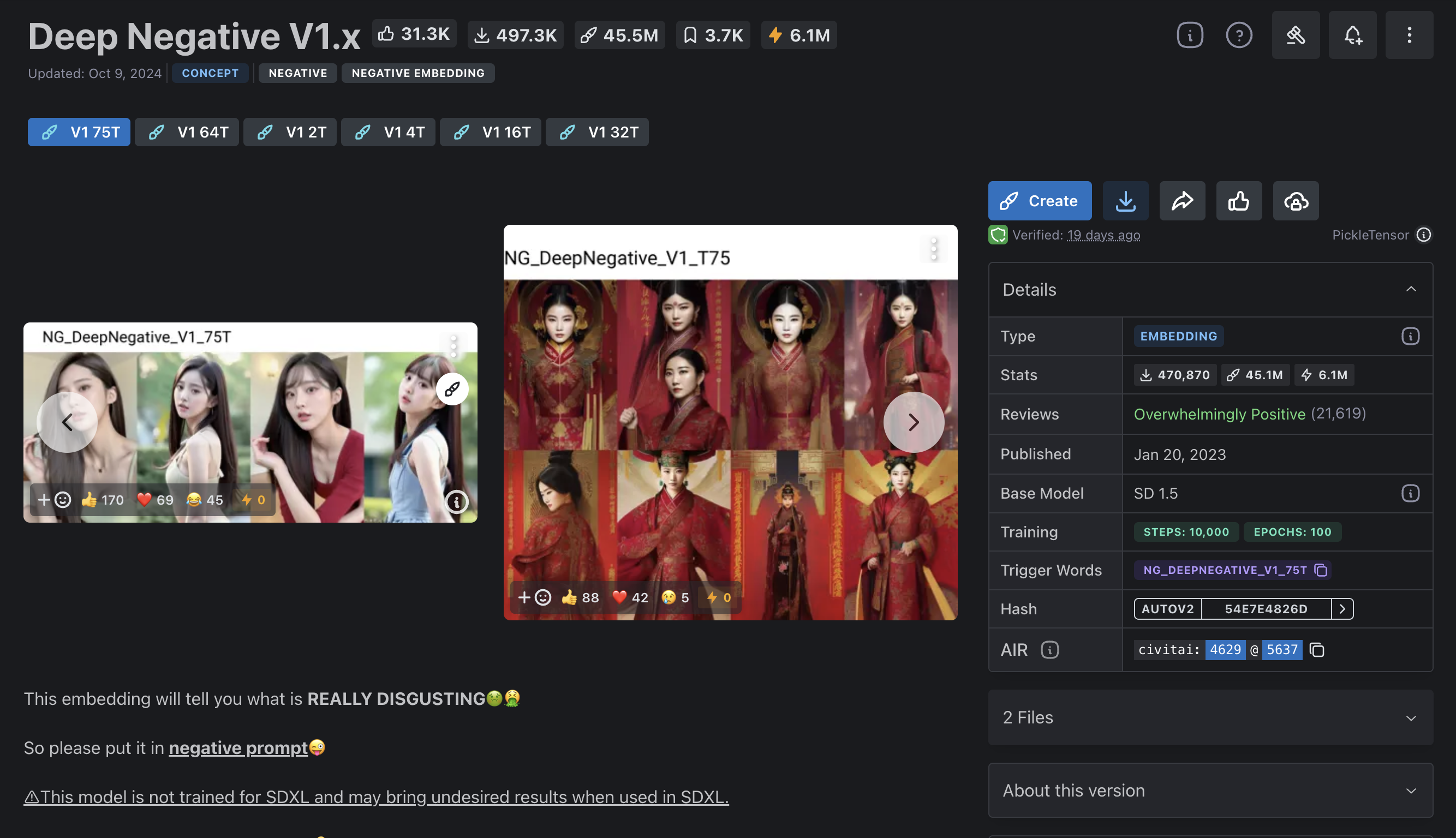
Download👇:
https://civitai.com/models/4629/deep-negative-v1x
Badhandv4
Specifically designed to fix hand-related issues such as missing fingers or extra arms, with minimal impact on the original style.
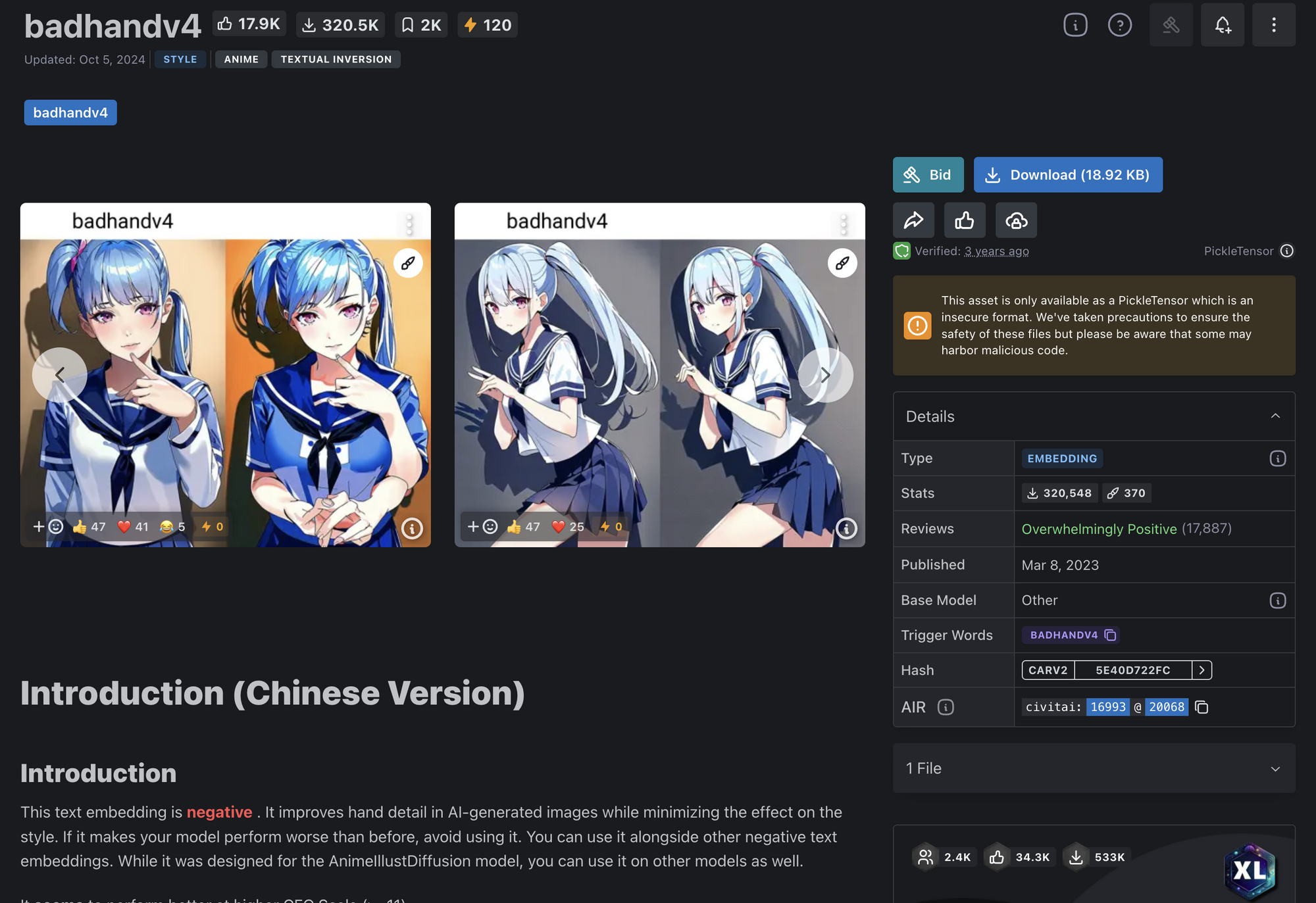
Download👇:
https://civitai.com/models/16993/badhandv4-animeillustdiffusion
Fast Negative
A versatile model that bundles common negative terms to enhance detail and reduce artifacts without altering the visual tone.
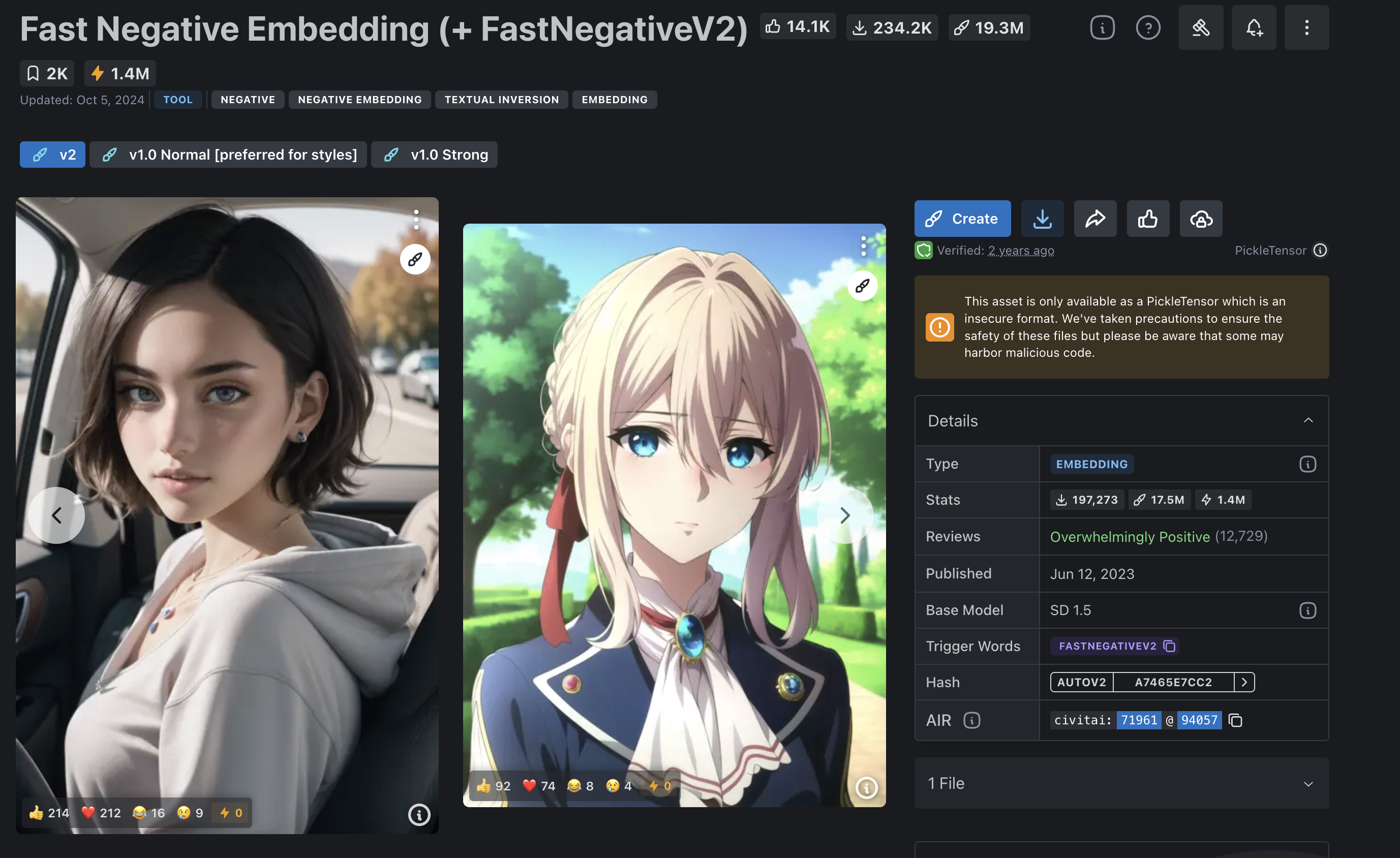
Download👇:
https://civitai.com/models/71961/fast-negative-embedding
4. Recommended Universal Negative Prompts
If you prefer not to rely on embedding models, you can use a set of general negative prompts that work well across most styles.
Example:
nsfw, ugly, duplicate, mutated hands, missing fingers, extra digit,blurry, bad anatomy, bad proportions, extra limbs, disfigured,watermark, signature, worst quality, low quality, jpeg artifacts,skin blemishes
You can paste these directly into the negative prompt field and make small adjustments based on your needs.
5. Adjust and Experiment to Find the Best Balance
Adding too many negative prompts doesn’t always mean better results. Each model reacts differently, so it’s best to tweak one or two terms at a time and use batch generation to compare outcomes. Gradually, you’ll find the right mix that gives you stable and high-quality outputs.
Summary
Negative prompts help remove unwanted artifacts and sharpen image quality.
Embedding models make managing negative prompts more efficient.
Universal terms are a great starting point for beginners.
Experimentation and fine-tuning are key to achieving consistent results.
Once you get the hang of these methods, your workflow in ComfyUI will become smoother, and you’ll produce higher-quality images with greater consistency.
Unlock Full-Powered AI Creation!
Experience ComfyUI online instantly:
https://market.cephalon.ai/share/register-landing?invite_id=RS3EwW
Join our global creator community:
https://discord.gg/MSEkCDfNSW
Collaborate with creators worldwide & get real-time admin support.