Part 1: A Guide to High-Definition Upscaling Workflows in ComfyUI: Non-Model Upscaling


When generated images have low resolution, simply stretching the dimensions will result in blurry output. ComfyUI offers multiple upscaling solutions to enhance image quality. This article introduces three methods ranging from basic to advanced, helping you quickly improve your image details.
- Non-Model Upscaling: Fast and Simple
Non-model upscaling relies on scaling algorithms rather than AI models to increase resolution. This method is very fast and suitable for situations where ultra-high image quality is not critical.
ComfyUI provides three scaling nodes, all located under Add Node → Image → Scale:
- Image Scale: Set target width and height directly in pixels
- Image Scale By Factor: Scale by a multiplier (e.g., 2x)
- Image Scale To Total Pixels: Set the total pixel count (e.g., 1 megapixel)

Choosing a Scaling Method:
Nodes offer five algorithms including Nearest-Exact and Bilinear. In practice, the differences are often subtle, with "Nearest-Exact" providing slightly sharper edges. Choose based on your specific image needs.
Tips:
- The Image Scale node offers "Don't crop" (stretch) and "Center crop" modes
- In Scale By Factor, a value of 2 doubles the dimensions
- In Scale To Total Pixels, a value of 2 represents 2 megapixels (e.g., 1024×2048)
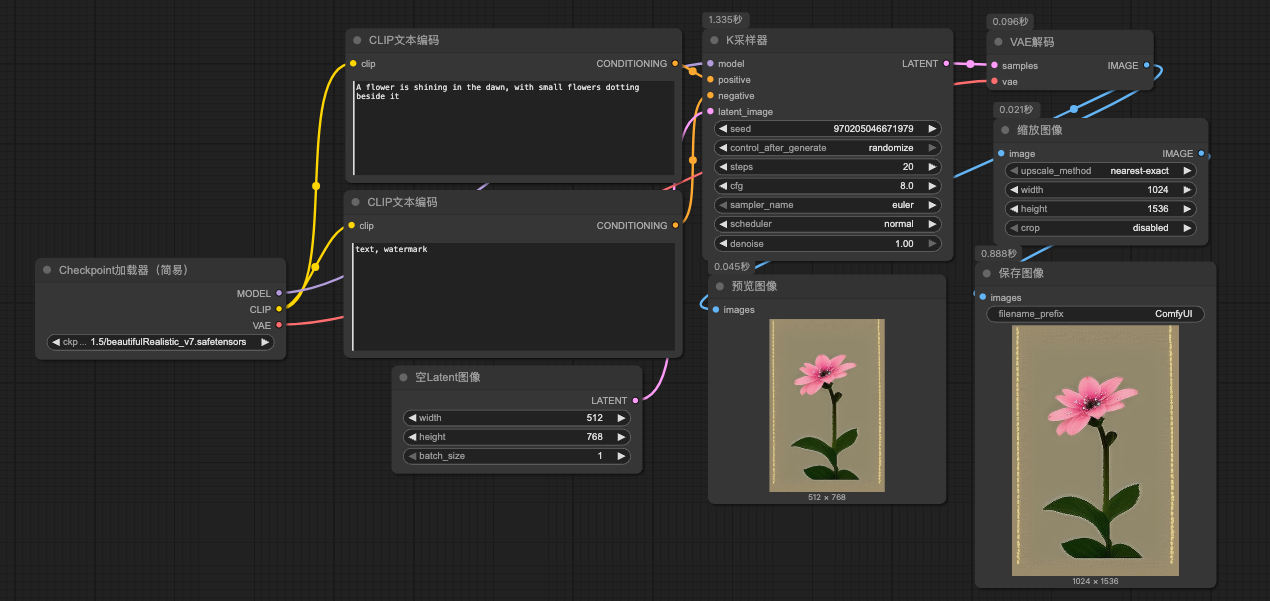
2. Workflow Setup Example
Integrating upscaling nodes into your workflow is straightforward:
(1) Connect the output of the VAE Decode node to your chosen scaling node at the end of your text-to-image workflow
(2) Connect the scaling node's output to the Preview Image node
(3) Adjust scaling parameters and generate
3. Example: Upscaling a Flower Image
Let's walk through a practical example:
(1) Connect an Image Scale node to the end of your text-to-image workflow
(2) Set the target resolution (e.g., from 512×512 to 1024×1024)
(3) Add flower-related prompts and generate
(4) The upscaled image shows noticeably improved detail clarity
Summary
Non-model upscaling is ideal for quick processing when maximum quality isn't critical. For higher-quality results, we'll cover AI-based upscaling methods in future guides. Beginners are encouraged to master these basic operations first to understand node connections.
Tip: Recent ComfyUI versions include improved preview features, allowing real-time comparison of different scaling algorithms.
Unlock Full-Powered AI Creation!
Experience ComfyUI online instantly:
https://market.cephalon.ai/share/register-landing?invite_id=RS3EwW
Join our global creator community:
https://discord.gg/MSEkCDfNSW
Collaborate with creators worldwide & get real-time admin support.