ComfyUI-Impact-Pack Guide: Streamline Your AI Image Workflow


For anyone using ComfyUI to create AI images, managing and optimizing complex workflows can be a real challenge. Enter a powerful solution: ComfyUI-Impact-Pack. This tool automates many advanced yet tedious image processing tasks, making it perfect for beginners looking to boost both efficiency and output quality.
Overview & Installation
The ComfyUI-Impact-Pack is a free, custom node package built specifically for ComfyUI. Its main appeal is offering plug-and-play intelligent modules. You can achieve sophisticated results without building complex logic from scratch, including:
- Automatic Face Detection & Restoration: Precisely locates faces in images and enhances their details.
- Advanced Mask Generation: Intelligently identifies object outlines to create perfect masks for inpainting.
- Detail Refinement: Performs high-quality, iterative redraws on specific small areas like faces or hands.
Installation via Manager
The process is straightforward and happens entirely within ComfyUI:
- In the main ComfyUI interface, click the "Manager" button at the bottom right.
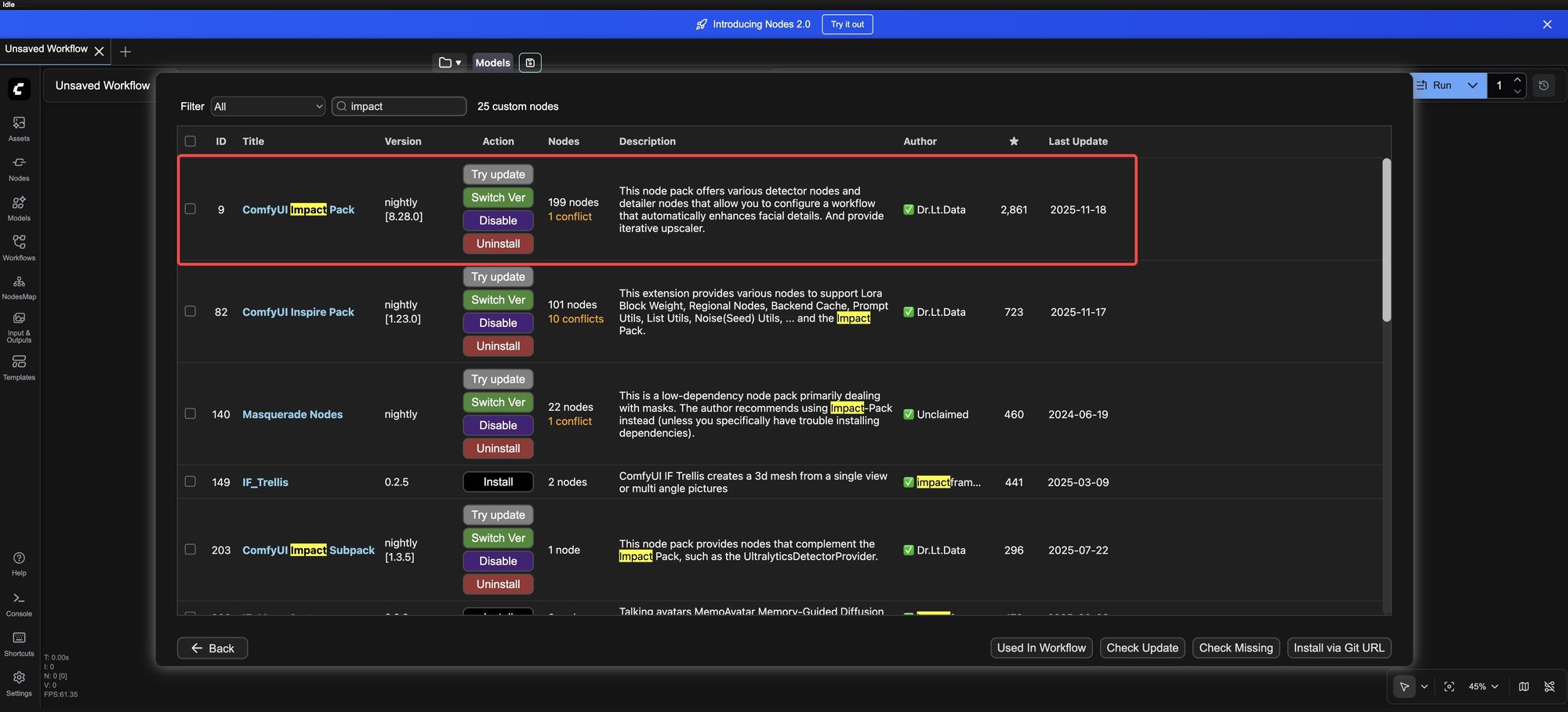
- In the pop-up window, navigate to the "Install Nodes" tab.
- Type "Impact" into the search box at the top right and press Enter.
- Find "ComfyUI Impact Pack" in the results list and click the "Install" button on its right.
- Once installed, restart ComfyUI. The new nodes will be available under the "Impact" category in the node menu.
Core Features: The Three Detectors
The intelligence of Impact-Pack comes from its built-in detectors. Understanding them helps you use the toolkit more effectively.
BBOX Detector (Draws a Box)
- What it does: Quickly identifies the location of specific targets (like a face or hand) by drawing a rectangular bounding box around them.
- Common use: Employ the
bbox/face_yolov8m.ptmodel to swiftly find all rectangular face regions in a picture.
Segm Detector (Traces the Outline)
- What it does: More precise than BBOX, it traces the target's complete contour to generate a shape-fitting mask.
- Common use: Use the
segm/person_yolov8n-seg.ptmodel to get an accurate outline of a person in the scene, not just a box.
SAM Detector (Adds Fine Detail)
- What it does: This is a powerful segmentation AI capable of generating masks with extremely rich detail. It's typically used in tandem with the BBOX detector: first, BBOX quickly locates the general target area, then SAM performs refined segmentation within that area to produce a perfect, sharp-edged mask.
Practical Application: Automatic Face Detection & Refinement
This is one of Impact-Pack's most popular features, fully automating the enhancement of facial quality in portraits.
We'll use the "Face Detailer" node as the core. This powerful node integrates a complete pipeline—detection, cropping, redrawing, and compositing—within itself. You simply connect it like you would a regular sampler.
Simple Workflow Setup:
Place the Core Nodes:
- Add the "Face Detailer" node from the menu.
- Add a "Load Image" node and upload a portrait.
- Add a "Checkpoint Loader" and choose a suitable portrait model (e.g.,
majicmixRealistic_v7.safetensors). - Add two "CLIP Text Encoder" nodes. It's good practice to rename them "Positive Prompt" and "Negative Prompt". Input simple quality prompts, e.g., Positive: "masterpiece, best quality, portrait"; Negative: "blurry, deformed".
Connect the Detection Module:
- Add a "Detector Loader" node. In its "model_name" dropdown, select
bbox/face_yolov8m.pt(the face detection model). - Add a "SAM Loader" node, leaving all parameters at their defaults.
Now, connect the outputs from all the above nodes to the corresponding inputs on the "Face Detailer" node:
- Connect
image,model,CLIP,VAE,positive/negativeas you normally would. - Connect the output of the "Detector Loader" to the
bbox_detectorinput. - Connect the output of the "SAM Loader" to the
sam_model_optinput.
Key Parameter Settings:
Adjust these few key parameters in the "Face Detailer" node for good results:
guide_size: Set to 384. This means detail enhancement triggers automatically when a detected face region is smaller than 384 pixels.denoise: Set to 0.5. This controls the strength of redrawing; 0.5 balances detail restoration and preserving the original look well.feather: Set to 5. This creates a more natural transition between the repaired area and the original image, avoiding hard seams.- Check the boxes for "Generate Mask Only" and "Force Inpaint" to ensure processing is focused only on the facial area.
Generate & Preview:
Finally, connect the output image from the "Face Detailer" node to a "Preview Image" node. Click "Add Prompt to Queue", and after a moment, you'll get a refined image where facial details (like skin texture and eye clarity) are noticeably enhanced.
Conclusion
Think of ComfyUI-Impact-Pack as a smart assistant added to your ComfyUI workflow. By packaging complex algorithms, it simplifies professional-level image processing tasks—like face refinement and intelligent masking—that would otherwise require multiple steps.
For beginners, starting with the "Face Detailer" function is recommended, as it most directly demonstrates the extension's value. As you grow more comfortable, you can explore its other detectors and tools to gradually build more automated and powerful image processing pipelines.
Unlock Full-Powered AI Creation!
Experience ComfyUI online instantly:👉 https://market.cephalon.ai/aigc
Join our global creator community:👉 https://discord.gg/KeRrXtDfjt
Collaborate with creators worldwide & get real-time admin support.