Practical Guide to Writing Positive Prompts in ComfyUI

Overview
When using Stable Diffusion (SD) to generate images—whether through Text-to-Image or Image-to-Image—positive prompts are the core element. They directly determine the image’s content, style, and quality.
For ComfyUI users, crafting clear and structured positive prompts helps you generate your desired images more efficiently while reducing unwanted randomness.This guide introduces practical techniques based on SD’s underlying principles and ComfyUI’s node workflow, designed especially for beginners to get started quickly.
1. Understanding the Role of Positive Prompts
Positive prompts describe the visual elements you want in your image—such as characters, scenes, styles, or visual quality.
In ComfyUI, they’re usually entered through text nodes (for example, the CLIP Text Encoder) and used alongside negative prompts.
If your positive prompts are unclear, the generated results may look messy or far from what you expect.
Tips:
Use a separate text node for positive prompts in your ComfyUI workflow. Rename it (for example, “Positive Prompt”) to avoid confusion.
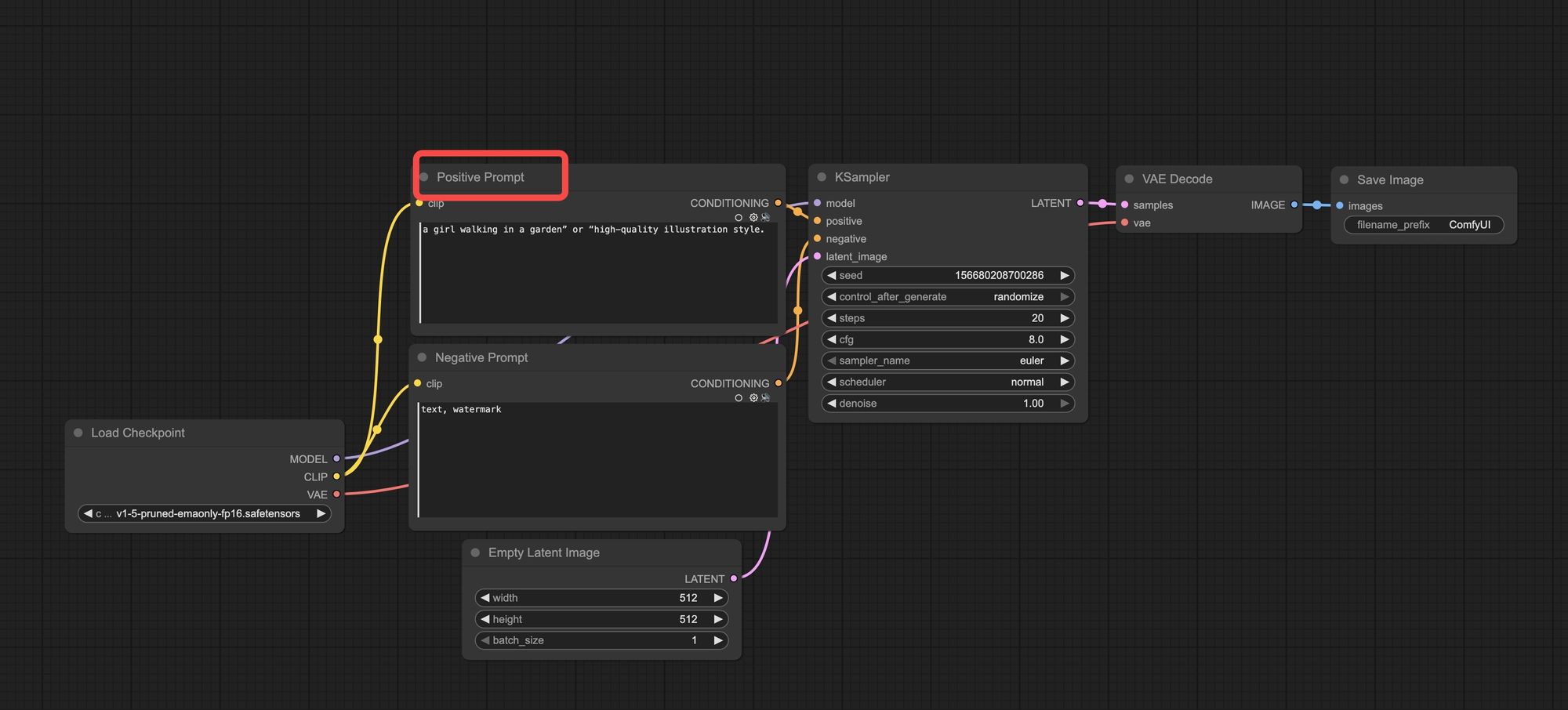
Focus on concrete elements when writing, such as “a girl walking in a garden” or “high-quality illustration style.”
2. Keep Your Prompts Simple
You can write prompts in natural language (full sentences) or as single English words and short phrases.
However, unless you’re using the latest models like SDXL, the model may not interpret full sentences accurately, which can lead to unstable results.
It’s generally better to use comma-separated keywords or short phrases to improve consistency and control.
Tips:
In a ComfyUI text node, enter prompts like:
high quality, girl, garden, walking
Avoid complex sentence structures. Focus on key terms to minimize randomness.
3. Use Batch Generation to Improve Results
Since SD’s image generation contains some randomness, many users generate multiple images at once and then select the best one.
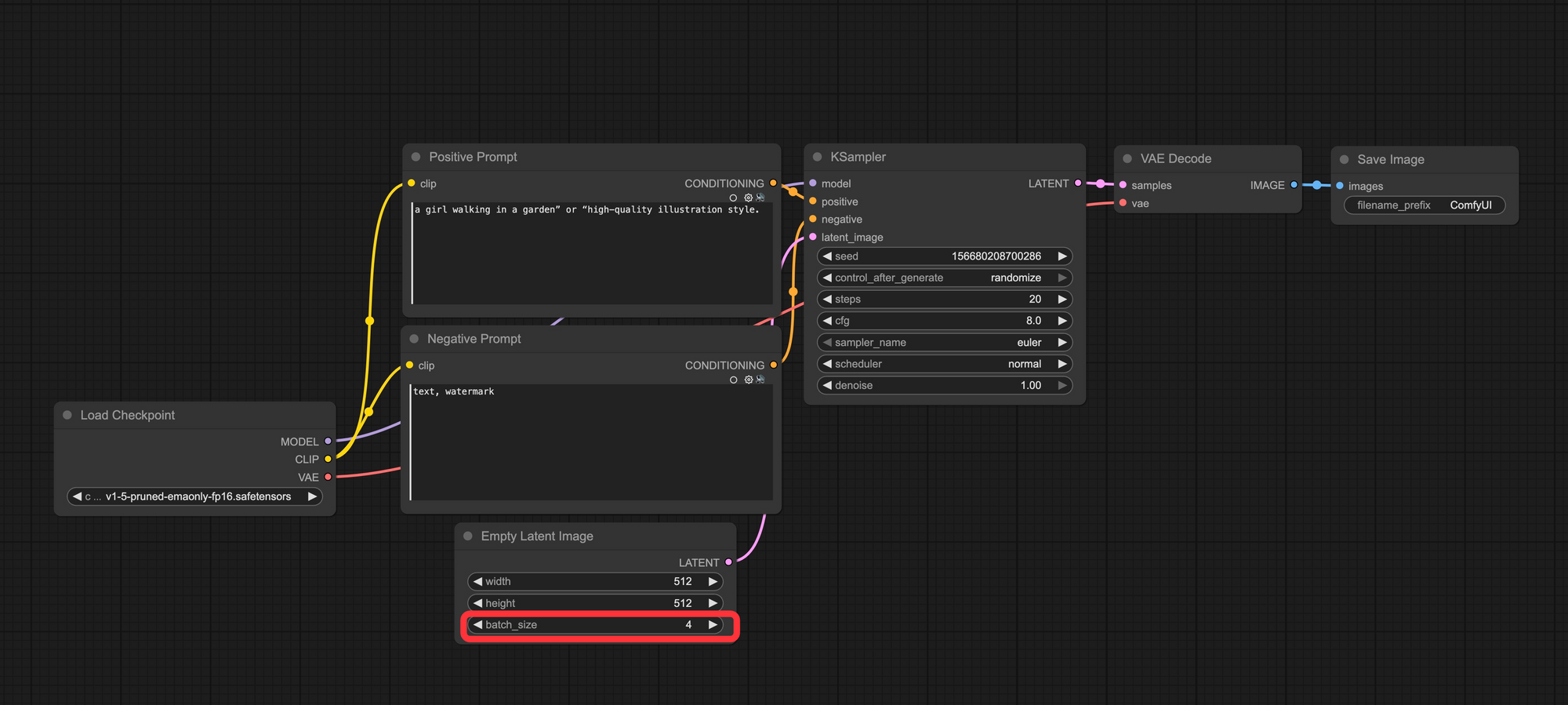
In ComfyUI, you can achieve this by adjusting node parameters—such as the Batch Size in the Empty Latent node
Tips:
In the “Empty Latent” node, set the Batch Size (for example, to 4) to generate four images in one go.
4. Follow a Structured Template for Prompt Writing
A clear structure greatly improves image quality.
A common template includes: quality, theme, subject, environment, atmosphere, camera, style, and image type.
You can use all or just some of these elements depending on your creative goal.
Example structure:
Quality: high resolution, detailed
Theme: fantasy landscape
Subject: a knight with armor
Environment: in a forest
Atmosphere: sunny day
Camera: wide shot
Style: anime style
Image Type: digital illustration
In ComfyUI, enter these components in order within the text node, separated by commas.
5. Pay Attention to Prompt Weight and Order
In SD, the order of words affects their weight—terms placed earlier have higher influence.
To ensure the model focuses on key elements, put the most important words first.
Tips:
Follow the logic: Quality → Main Elements → Details.
For example:high quality, a girl in a garden, walking, flowers
To emphasize a particular style, place style terms before content terms, such as:oil painting style, a castle on a hill
By applying these techniques, you can write and manage positive prompts more effectively in ComfyUI and produce results that match your creative vision.
Remember, prompt writing takes practice and iteration. Combine it with batch generation to refine your workflow step by step.
If you’re new to ComfyUI, start simple—use short, clear prompts first, then gradually explore more complex structures as you gain experience.
Unlock Full-Powered AI Creation!
Experience ComfyUI online instantly:
https://market.cephalon.ai/share/register-landing?invite_id=RS3EwW
Join our global creator community:
https://discord.gg/MSEkCDfNSW
Collaborate with creators worldwide & get real-time admin support.